Hole
A cube-shaped object that is pre-configured to act as a boolean subtraction tool. When you use Combine, Hole objects are automatically subtracted from other shapes instead of being added to them.
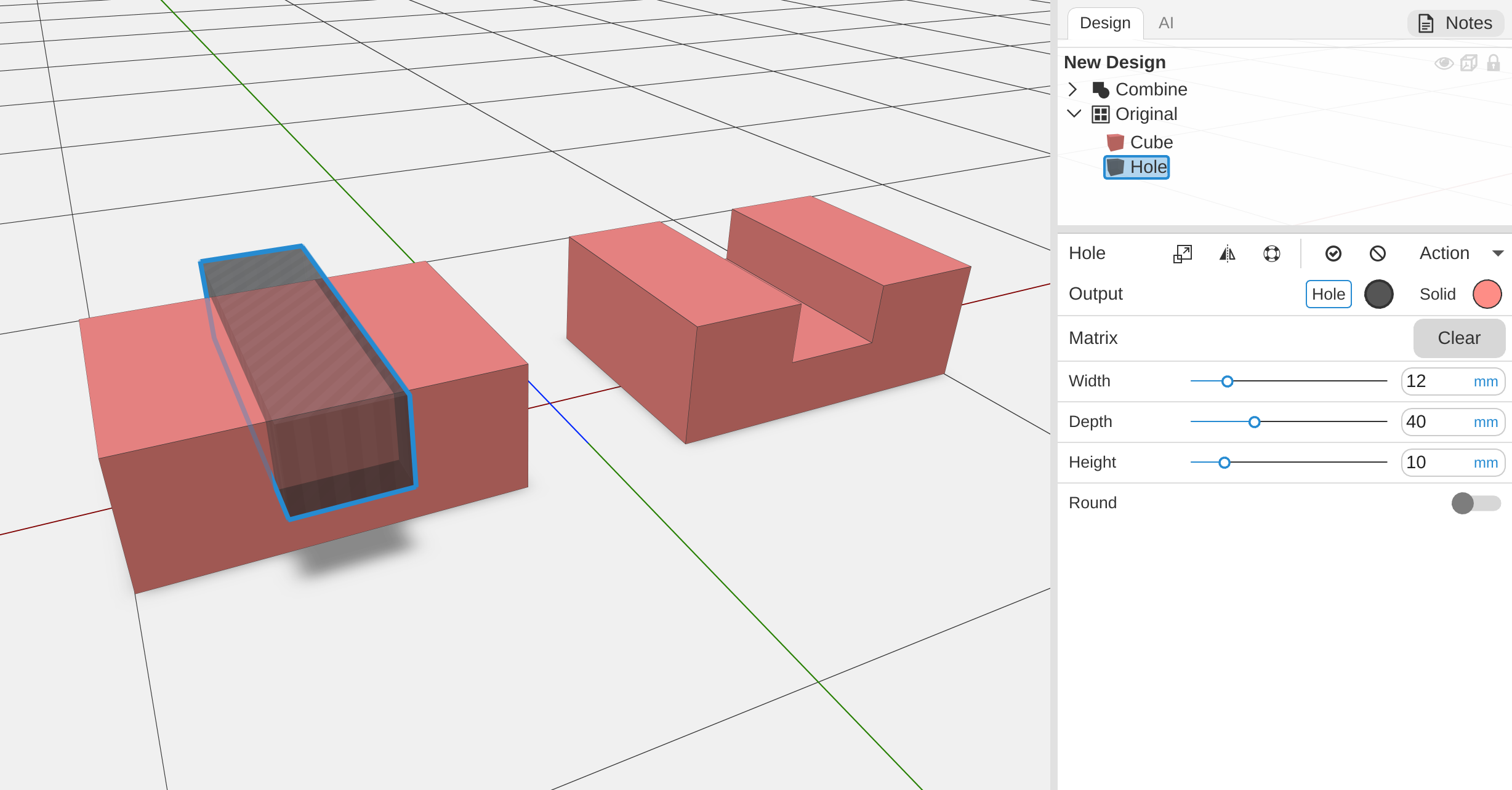
How It Works
The Hole primitive works like a Cube but its Output row is set to Hole. When you combine objects that include a Hole, the Hole's volume is removed from the result.
Every object has the same Output row at the top of its Properties panel, with Hole and Solid buttons. Set any shape, a Cylinder for a round hole for example, to Hole and it cuts the same way.
Parameters
Same as Cube:
- Width - Size along the X axis, in mm (default 20)
- Depth - Size along the Y axis, in mm (default 20)
- Height - Size along the Z axis, in mm (default 20)
- Round - Off by default. Turn it on to round every edge
- Radius - The size of the rounding, in mm (default 3). Shown only with Round on
- Round Segments - How many steps make each rounded edge (default 9). Shown only with Round on
- Grow From - Which side of the part stays where it is when you change its size: Center (the default) grows it the same amount on every side, Front Left keeps its front and left sides in place so it grows toward the back and right, and Back Right keeps its back and right sides in place so it grows toward the front and left. The sides are the part's own, so a part you have turned grows along its own sides. The bottom always stays where it is, so a taller part grows upward. It applies when Width or Depth changes, whether you type it or a formula changes it; other settings don't use it. It is the last row in the panel
Tips
- Position the Hole so it overlaps with the object you want to cut
- Make the Hole extend completely through the target object if you want a through-hole
- You can use regular shapes with Subtract for the same effect, but Holes are convenient because they work automatically with Combine
- For a round hole, add a Cylinder and set its Output to Hole