MatterCAD on the Web
On the MatterCAD website, each design in your library has a page of its own. The page shows the design in 3D, and the same page lets you edit it with MatterCAD, right in your browser. There is nothing to install.
A design page works in three steps:
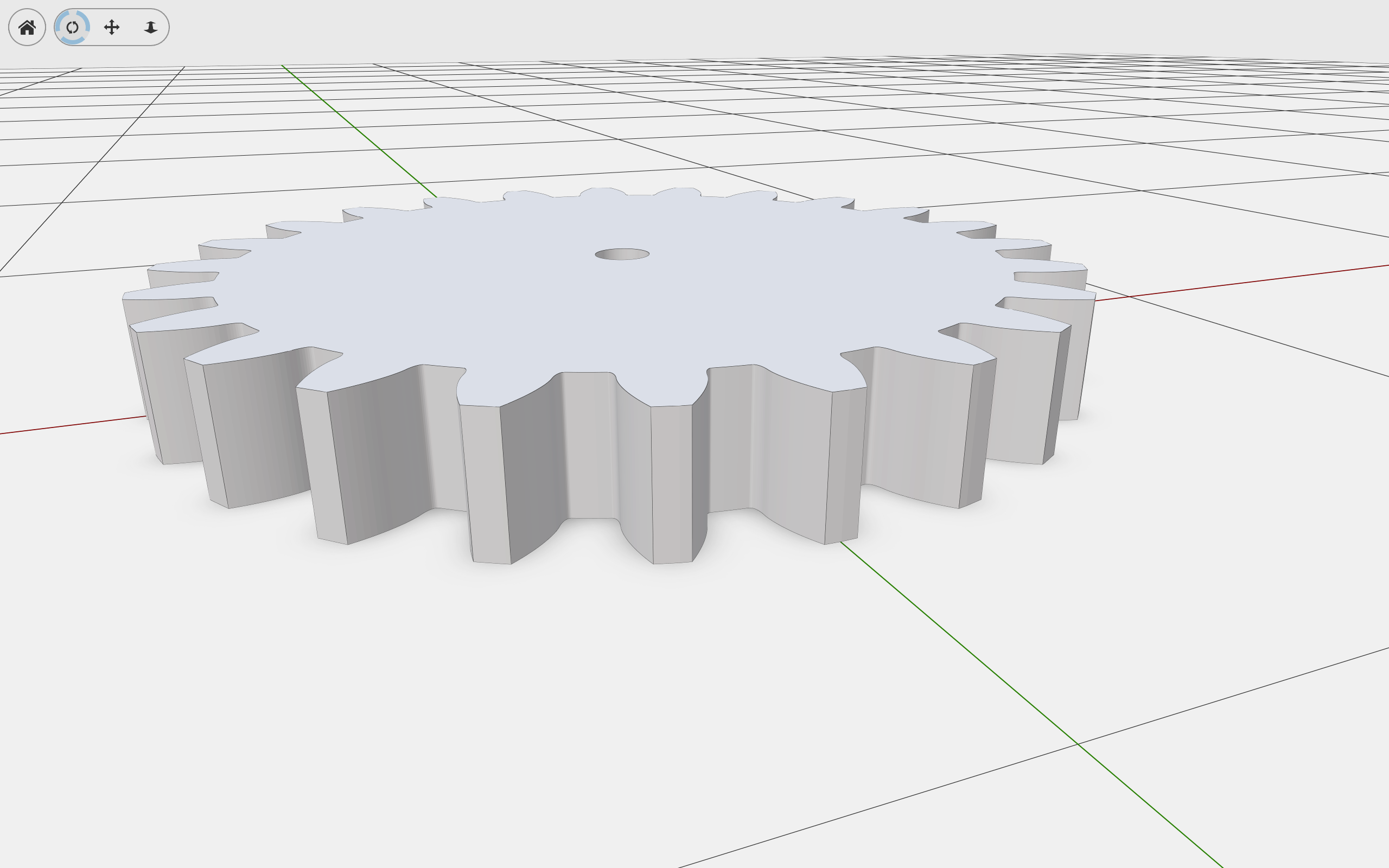
- Preview - The design opens as a 3D preview. You can turn it, move it and zoom, but nothing changes the design.
- Edit - Press Edit and the MatterCAD editor slides in around the same view.
- View - Press View to go back to the preview.
What You Need
MatterCAD on the website needs a browser with WebGPU, such as a current Chrome, Edge or Safari.
In a browser without WebGPU, the page shows this message where the 3D view would be: "This browser can't show the 3D preview because it doesn't support WebGPU. Use a current Chrome, Edge or Safari, or download the file." On a design's page, the Download file button under it gets the design's file, so you can open it in MatterCAD on your computer.
Open a Design
- On the website's Library page, open the folder the design is in.
- Click the design.
Its page opens. While it gets ready you see "Loading MatterCAD…", then "Downloading model…" with how far along it is, then "Preparing model…". Then the design appears, framed so you can see all of it.
The title bar above the design holds:
- Library (with the back arrow) - Back to the library folder you came from.
- Edit - Opens the editor. While you edit it reads View, a plain button that goes back to the preview. It can't be pressed until MatterCAD has started, or while the editor is sliding in or out.
- ☰ Options - The Options menu, shown only while you edit (The Options Menu).
- The design's name.
- The full screen button (an icon of four corners, between the name and Download) - Fills the screen with the title bar and the design. Press it again, or press Esc, to go back. Its tooltip reads "Full screen" or "Exit full screen". It is there only when your browser can fill the screen.
- Download - Downloads the design's file as it was last saved.
Above the title bar, the website's header has a Feedback button for telling us what you think of MatterCAD or the website (Getting More Help). Next to it is the menu under your name, where you choose the website's theme (Light, Dark or Match my system) and color, and Sign out. When you aren't signed in, a theme button sits beside Sign in instead.
If the design can't be shown, the page says why, starting with "This design couldn't be shown", and tells you to use Download to get the file.
Look Around the Preview
- Drag in the 3D view to turn it. Scroll the mouse wheel to zoom.
- The buttons at the top-left - Reset View brings back the starting view. Rotate View, Move View and Zoom View choose whether a drag turns, moves or zooms the view.
- On a touch screen, one finger does what the selected button says, and two fingers pinch to zoom and move the view. See Touch Screen.
- Keys - Click in the 3D view first, so your keys go to MatterCAD and not to the web page. Then the arrow keys turn the view, Shift + arrow keys move it, Ctrl + Plus and Ctrl + Minus zoom (⌘ on a Mac), and W goes back to the starting view.
In the preview a click never selects or moves a part. Press Edit to change the design.
Edit the Design
Press Edit in the title bar. With a mouse you can also double-click the 3D scene to start editing, where the design allows it. The editor slides in around the design:
- The toolbar across the top, starting with Add to Bed. The ☰ Options button appears in the title bar (The Options Menu).
- The favorites bar of shapes down the left side.
- The side panel on the right, with its Design and AI tabs and the Notes button.
- The camera controls: the cube in the top-right corner of the view and the round buttons around it.
From here, editing works as it does in MatterCAD on your computer. Getting Started shows you how to add shapes, change them and combine them.
While you edit, the page's address says so: reloading the page, or opening that address later, opens the design straight in the editor.
Stop Editing
Press View in the title bar. If every change is saved, the editor slides away and you are back in the preview.
If you have changes that are not saved, MatterCAD asks first, in a box titled Save Changes?: "Save your changes before you stop editing?"
- Save Changes - Saves the design, then goes back to the preview once the save has finished. If the design can't be saved over, Save As opens first, so you choose a folder and a name for your own copy (Saving on the Web).
- Discard Changes - Throws your changes away, puts back the last saved version, and goes back to the preview.
- Cancel - Stays in the editor with your changes.
Leaving the Page
While you have changes that are not saved, your browser asks before you leave the page or close the tab. As you work, MatterCAD keeps a copy of your unsaved changes in this browser, so if the page closes anyway it can offer them back the next time you open the design (Unsaved Changes Found).
Topics
- The Options Menu - New Design, the Interface Tour, Help and Settings on the website
- Saving on the Web - Save, Save As to a folder of your choice, Export, and getting back unsaved changes
- Adding Parts on the Web - Shapes, sample parts and the designs in your own library
- Using MatterCAD on a Phone - The phone layout, the selection bar, press and hold menus and the bottom sheet
- Web and Desktop Differences - What works differently in a browser