Signing In
You don't need an account to design in MatterCAD. Sign in to your MatterHackers account when you want to use your Cloud Library, open designs others have shared with you, or use MatterHackers AI.
Sign In
MatterCAD signs you in through your web browser, on mattercad.com. You type your password there, never in MatterCAD.
- Click (sign in) at the far right of the tab bar. Hover over it and it says "Sign in to your MatterHackers account".
- MatterCAD opens mattercad.com in your web browser, at the page where you sign in to your MatterHackers account. Sign in there.
- Come back to MatterCAD. It finishes signing you in on its own.
While you sign in in the browser, MatterCAD shows the Sign in to my account window. It says "Finish signing in in your browser", and below that "MatterCAD opened mattercad.com in your web browser. Sign in there with your MatterHackers account, then come back here. You can also create an account or reset your password there." Once the browser hands the sign-in back, the window says "Signing in..." for a moment.
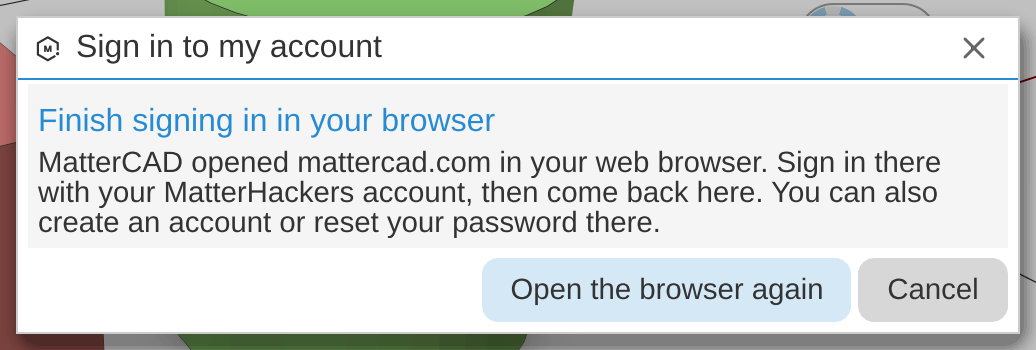
- Open the browser again opens the sign-in page once more, for example if you closed the browser tab. It starts a new sign-in, and the one before it stops.
- Cancel stops signing in and closes the window. Pressing Escape or closing the window does the same.
Once you are in, the window closes, (sign in) changes to your name, and the cloud designs you had open when you last signed out come back in their tabs. The browser tab shows whether signing in worked, and you can close it.
MatterCAD stays signed in when you close and reopen it, until you sign out.
Opening the Cloud Library in the library while signed out starts the same sign-in. So does the Sign In button in the AI tab, and MatterCAD starts it by itself when your sign-in has run out and you need to sign in again.
If signing in doesn't work, the window says why and what to do:
- "Sign in was canceled in the browser. Click Open the browser again to try once more." - You said no on the sign-in page.
- "MatterCAD's sign in is busy right now. Please wait a minute, then click Open the browser again."
- "The sign in could not be completed. Click Open the browser again to start over."
- "MatterCAD could not reach mattercad.com. Check your internet connection, then click Open the browser again."
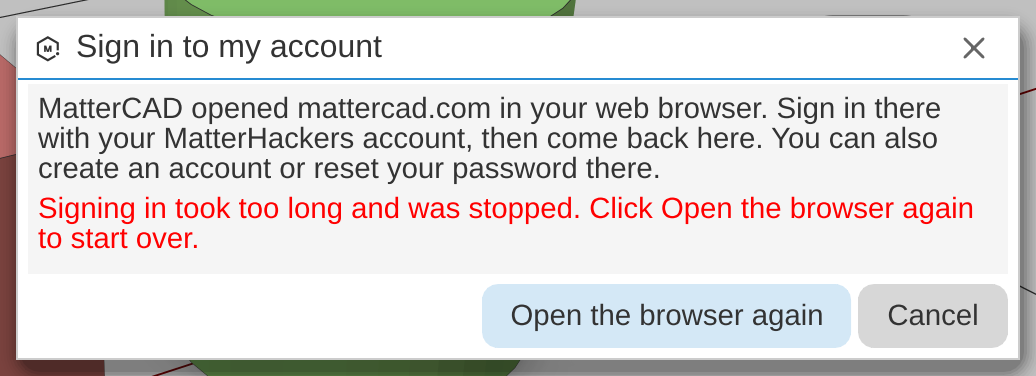
- "Signing in took too long and was stopped. Click Open the browser again to start over." - MatterCAD waits ten minutes for you to finish in the browser.
- "Signing in could not start. Restart MatterCAD and try again." - Followed by the reason, such as "MatterCAD could not open your web browser." If your browser didn't open, restart MatterCAD and click (sign in) again.
On the website, MatterCAD uses your mattercad.com sign-in: sign in on the website itself. Clicking (sign in) in the editor there says "Sign in on the MatterCAD website, then reload this page."
Create an Account
You make a MatterHackers account on mattercad.com, not in MatterCAD. Click (sign in); the page that opens in your browser lets you create an account. When it is made and you are signed in there, come back to MatterCAD and it finishes signing you in.
Forgot Password
You reset your password on mattercad.com, not in MatterCAD. Click (sign in); the page that opens in your browser lets you reset your password. Once you have signed in there with the new one, come back to MatterCAD.
The Account Menu
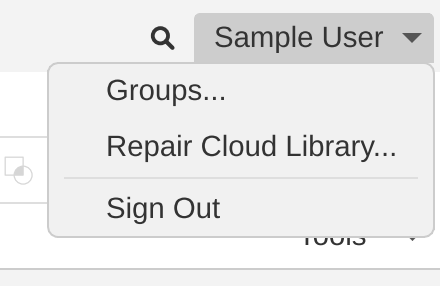
While you are signed in, click your name at the right of the tab bar for:
| Item | What it does |
|---|---|
| Groups... | Make groups of people to share with, and manage who is in them. See Groups |
| Repair Cloud Library... | Uploads parts your cloud designs use that are still only on this computer. Desktop app only |
| Sign Out | Signs you out. See below |
Designs and folders others share with you are in the Shared with Me folder of your Library. See Sharing.
Sign Out
- Click your name at the right of the tab bar and choose Sign Out.
- MatterCAD asks "Are you sure you want to sign out? You will not have access to your cloud library until you sign in again." Click Sign Out, or Cancel to stay signed in.
Signing out closes every tab that holds a design from your Cloud Library. Designs saved on your computer and new designs stay open. The closed cloud designs come back the next time you sign in.
If a cloud design has changes you have not saved, MatterCAD asks first, for example "You have unsaved changes in the cloud design 'Bracket'. Signing out closes it. Save the changes before signing out?"
- Save Changes saves the designs, waits for them to finish uploading, and then signs you out. If a design doesn't finish saving, MatterCAD stays signed in and tells you, so you can save it again.
- Sign Out Anyway signs out and throws the unsaved changes away.
- Cancel keeps you signed in.
After you sign out, Shared with Me and Purchased disappear from the Library until you sign in again, and the status bar's globe shows Disconnected.
Related
- Cloud Library - Keep designs online
- Sharing - Share designs and folders with people and groups
- Settings - The AI connection and MatterHackers AI
- Tabs, Search and the Status Bar - The tab bar and the status bar