Sharing
Share a design or a folder from your Cloud Library with other people. You choose what each person can do: look at it and make their own copy, or change it with you. What others share with you is in the Shared with Me folder of your Library.
Sharing works with designs and folders saved in your Cloud Library, so sign in first. A design saved only on your computer can't be shared: save it to the Cloud Library first.
Open the Share Dialog
Any of these opens the Share dialog:
- In the Library, right-click a design or one of your own cloud folders and choose Share....
- With a cloud design open, click Share on the toolbar, or click the arrow beside Save and choose Share.... On a Mac, File › Share... in the menu bar does the same.
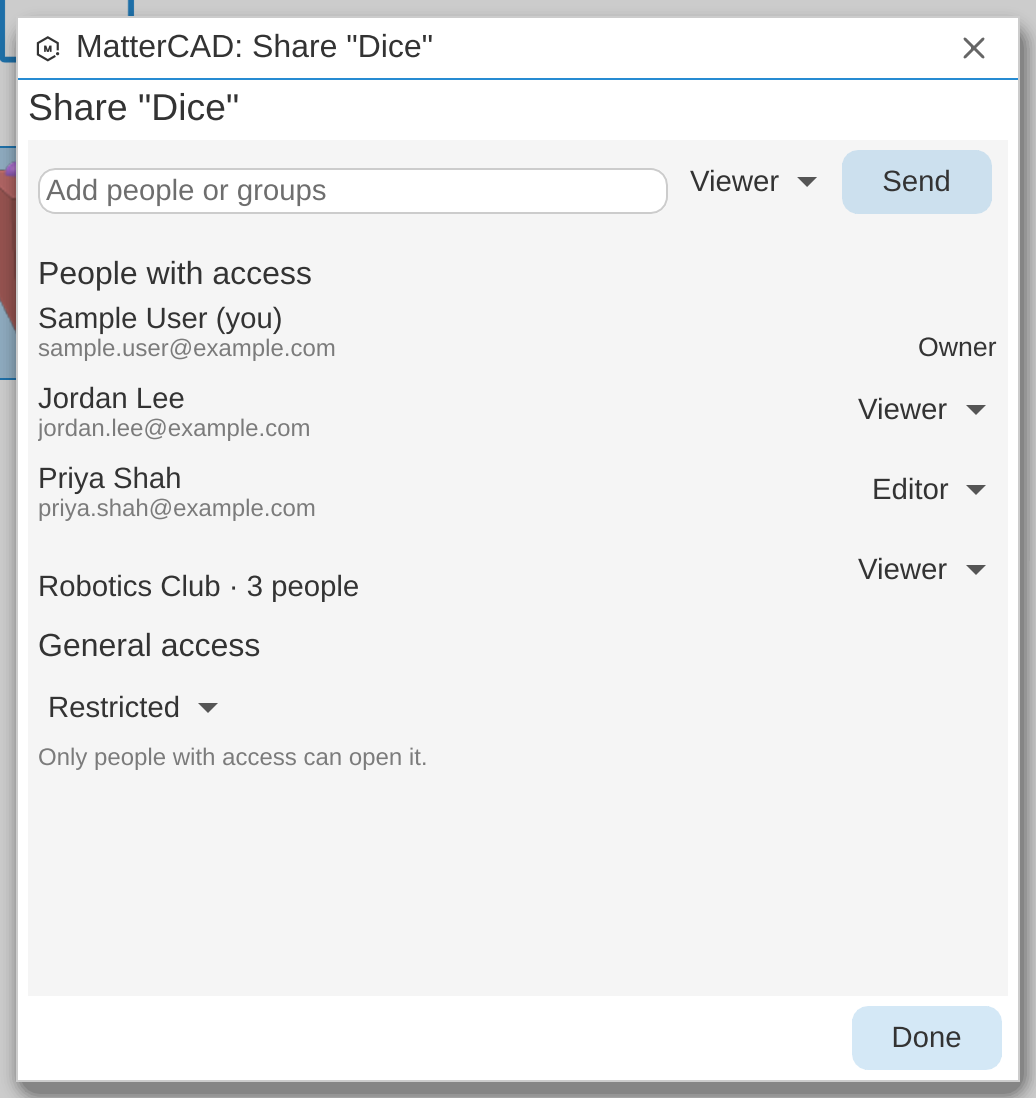
The dialog's title names what you are sharing, for example Share "Bracket". Click Done to close it.
Add People or Groups
- Choose what they can do from the drop-down beside the box: Viewer or Editor.
- Click in the box that says Add people or groups and type the person's email address. Once you have typed a whole address, the person's name shows under the box if they have a MatterHackers account. As you type, the box also suggests people you have shared with before: click one to put their address in the box.
- Click Send.
The person is added to People with access, and what you shared shows up in their Shared with Me folder.
To share with one of your groups, choose the role, type part of the group's name, and click the group in the suggestions. That shares with everyone in the group at once.
If the address doesn't look like one, the dialog says "Enter an email address, like name@example.com."
Sharing with someone who has no account
You can share with any email address. If nobody has a MatterHackers account with it yet, their row says Invited, and they get an email with a link. Once they make an account with that address and confirm it, what you shared is in their Shared with Me when they sign in. The link in the email works too.
People with Access
Each row shows the person's name, their email address under it, and on the right what they can do:
| Role | What they can do |
|---|---|
| Viewer | Open it, export it and save a copy of their own. They can't change your design: if they try to save it, MatterCAD says "This design is shared with you to view only. Ask its owner for edit access, or Save As to make your own copy." |
| Editor | Everything a Viewer can, and change it and save it. Editors can also add people and change or remove Viewers and Editors |
| Owner | The person whose design or folder it is. Only the owner chooses General access |
To change someone's role, click the drop-down on their row and choose Viewer or Editor. Choose Remove to take their access away.
Make owner - The owner's drop-down on another person's row also has Make owner. It hands the design or folder over to that person, so MatterCAD asks first. You stay on as an Editor.
Leave something shared with you - On your own row, click Remove. MatterCAD asks "Remove your access to "Bracket"? You'll need the owner to share it again." first.
A group's row reads its name and how many people are in it, for example "Design Team · 4 people". A group that has access through a folder above says From folder and the folder's name; change that share on the folder.
Sharing a Folder
Share a folder the same way as a design: right-click it in your Cloud Library and choose Share.... Under the title the dialog says "Everything in this folder is shared, including what you add later."
People you share a folder with find it in their Shared with Me folder and can open it:
- Viewers can open, export and copy what is in it, but can't change it.
- Editors can also add designs to it, rename what is in it, and remove things. What an Editor removes goes to the owner's Trash, so MatterCAD asks "Move to the Owner's Trash?" first.
Moving a design into or out of a shared folder makes a copy, and MatterCAD says so, for example "Copied — moving into a shared folder makes a copy."
General Access and Links
General access, at the bottom of the dialog, says who besides the people and groups above can open what you shared:
- Restricted (the starting choice) - "Only people with access can open it."
- Anyone with the link - Anyone you send the link to can view and download it.
- Public - "Anyone can view and download it, signed in or not." MatterCAD asks before it makes something public.
Only the owner can change it, from the drop-down; everyone else sees which one it is.
While Anyone with the link is chosen, the owner and Editors see Copy link. Click it to put the link on the clipboard (the dialog says "Link copied"), then paste it into an email or a chat. While it is Public, everyone who can open it sees Copy link. The link opens on mattercad.com, which asks the person to sign in if they aren't, puts what it opens in their Shared with Me, and opens it. For now, a link opens only for MatterHackers employees, whether it is Anyone with the link or Public.
Turning the link off asks first: "Turn off the link? Links you've already shared will stop working. People who already opened it keep their access." Turning it on again makes a new link.
Shared with Me
The Shared with Me folder in your Library holds the designs and folders others have shared with you. It is there while you are signed in.
Each row says who shared it and your role, for example "Shared by Pat · Viewer", or "Shared with Design Team by Pat · Editor" when it came to you through a group.
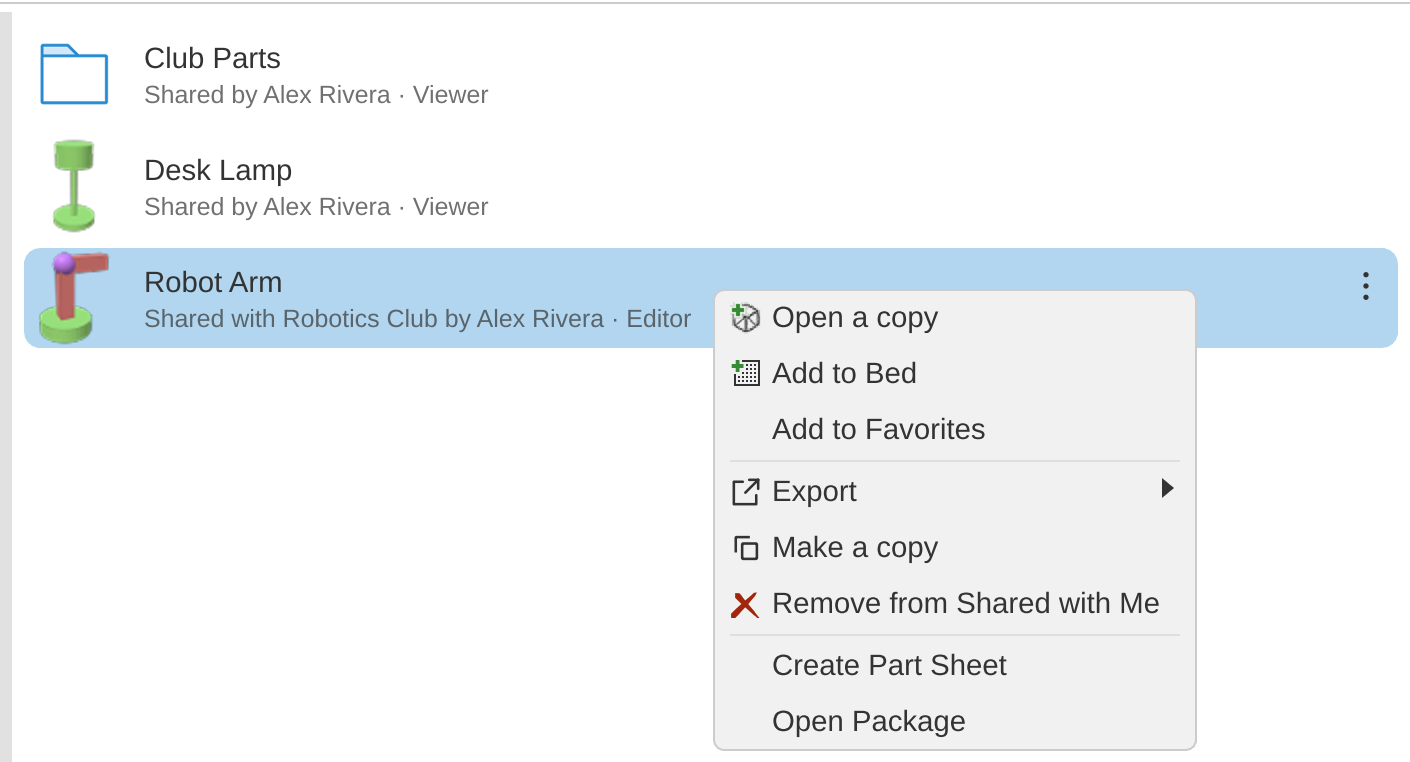
Right-click a row for:
- Make a copy - Copies the design into the top folder of your own Cloud Library, where you can change it as you like.
- Remove from Shared with Me - Takes it out of your Shared with Me. MatterCAD asks first, since only the owner can share it with you again. Something that came to you through a group can't be removed on its own: MatterCAD says "You get this through the group Design Team. Leave the group to remove it." and offers to open Groups....
Shares waiting for your email address
Shares sent to an email address you haven't confirmed yet wait until you confirm it. While they do, Shared with Me shows, for example, "2 shares are waiting for pat@example.com. Confirm your email address to see them." Click Confirm email address to open the confirm page in your browser. Once you have confirmed, come back to MatterCAD and the shares show up.
Groups
A group lets you share with several people at once. Anyone signed in can make one. Everyone in a group sees the names and email addresses of the others in it. When you add someone to a group, they get everything already shared with the group.
To open Groups, click your name at the right of the tab bar and choose Groups....
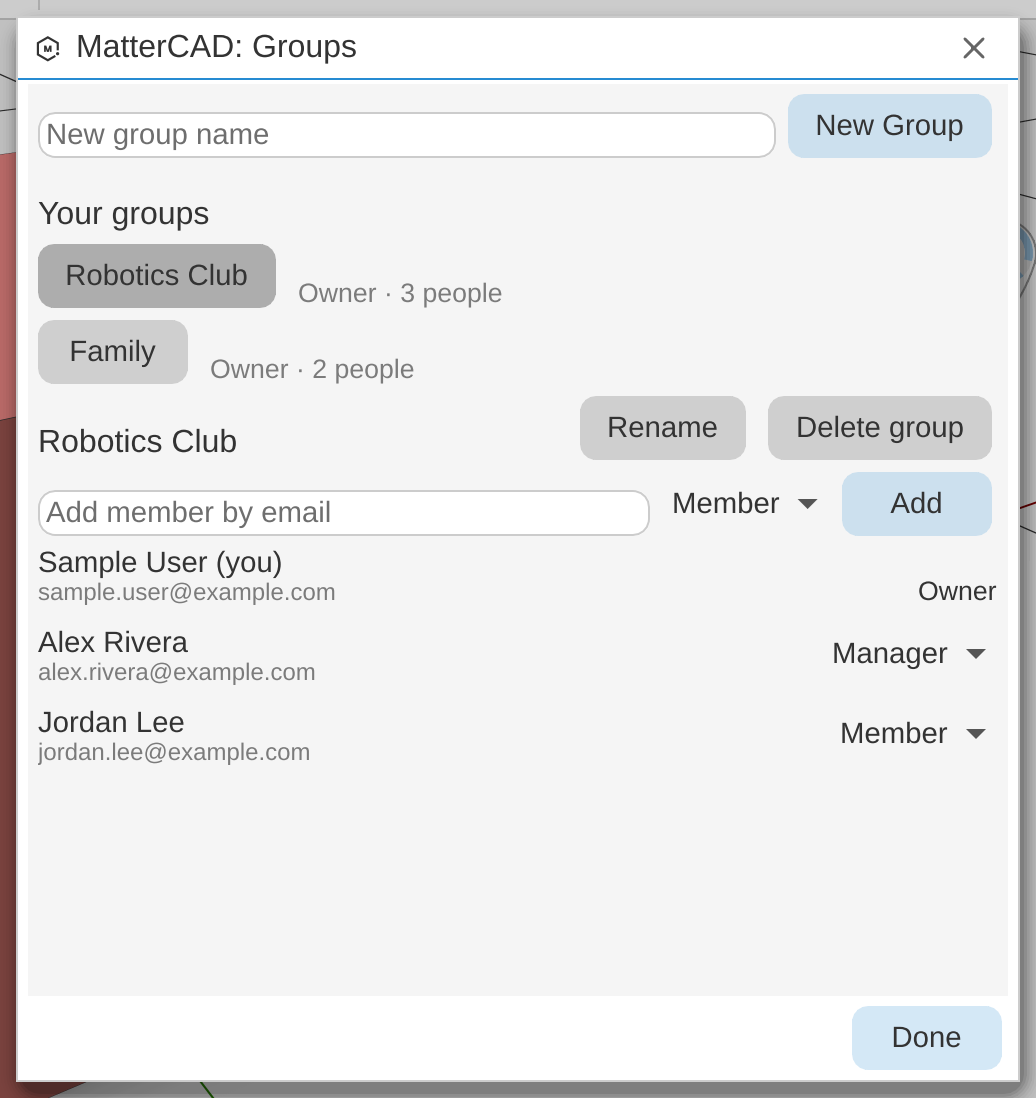
- Make a group - Type a name in New group name and click New Group.
- See a group - Click it in Your groups. Each group says your role and how many people are in it.
- Add someone - Type their address in Add member by email, choose Member or Manager, and click Add. Someone without an account yet shows as Invited.
- Change or remove a member - Use the drop-down on their row: Member, Manager or Remove.
- Rename - Click Rename beside the group's name, type the new name and click Save.
- Leave group or Delete group - MatterCAD asks first. Deleting is for the group's owner.
The group's owner and its managers add, change and remove members and rename the group.
Sharing on mattercad.com
The Library on mattercad.com shares the same way: right-click a design or folder and choose Share…, or click Share above a design you have open there. The dialog has the same parts: Add people or groups, People with access and General access with Copy link. What you share on the website is shared in the app too, and the other way round.
Related
- Cloud Library - Store designs online so you can share them
- Signing In - Your account and its menu
- Local Library - Manage designs on your computer
- Saving and Exporting - Send a file instead