Grouping
Grouping combines multiple objects into a single unit that can be moved, copied, and operated on as one object. Unlike Combine, grouping does not merge the geometry -- each object remains separate inside the group.
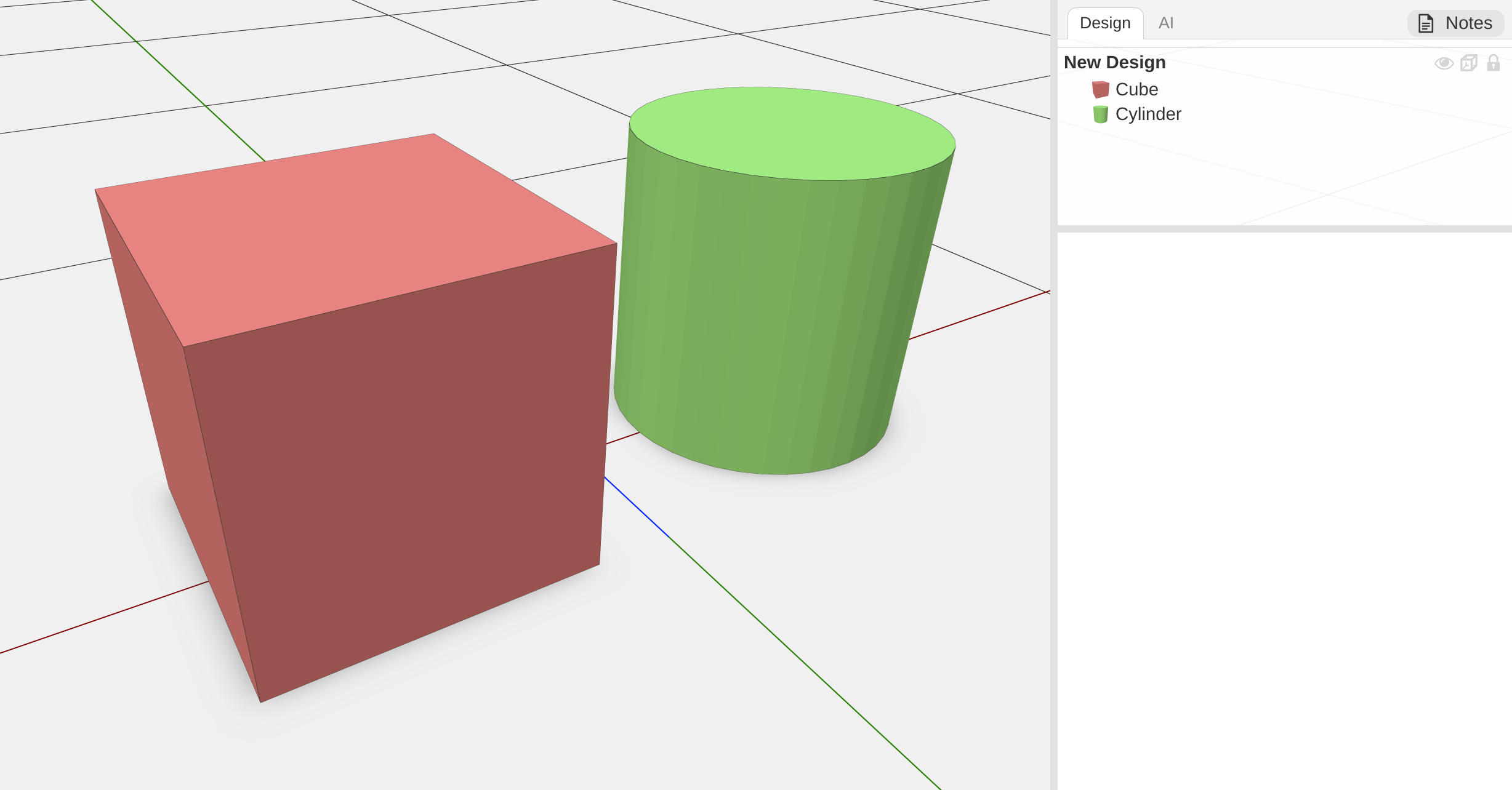

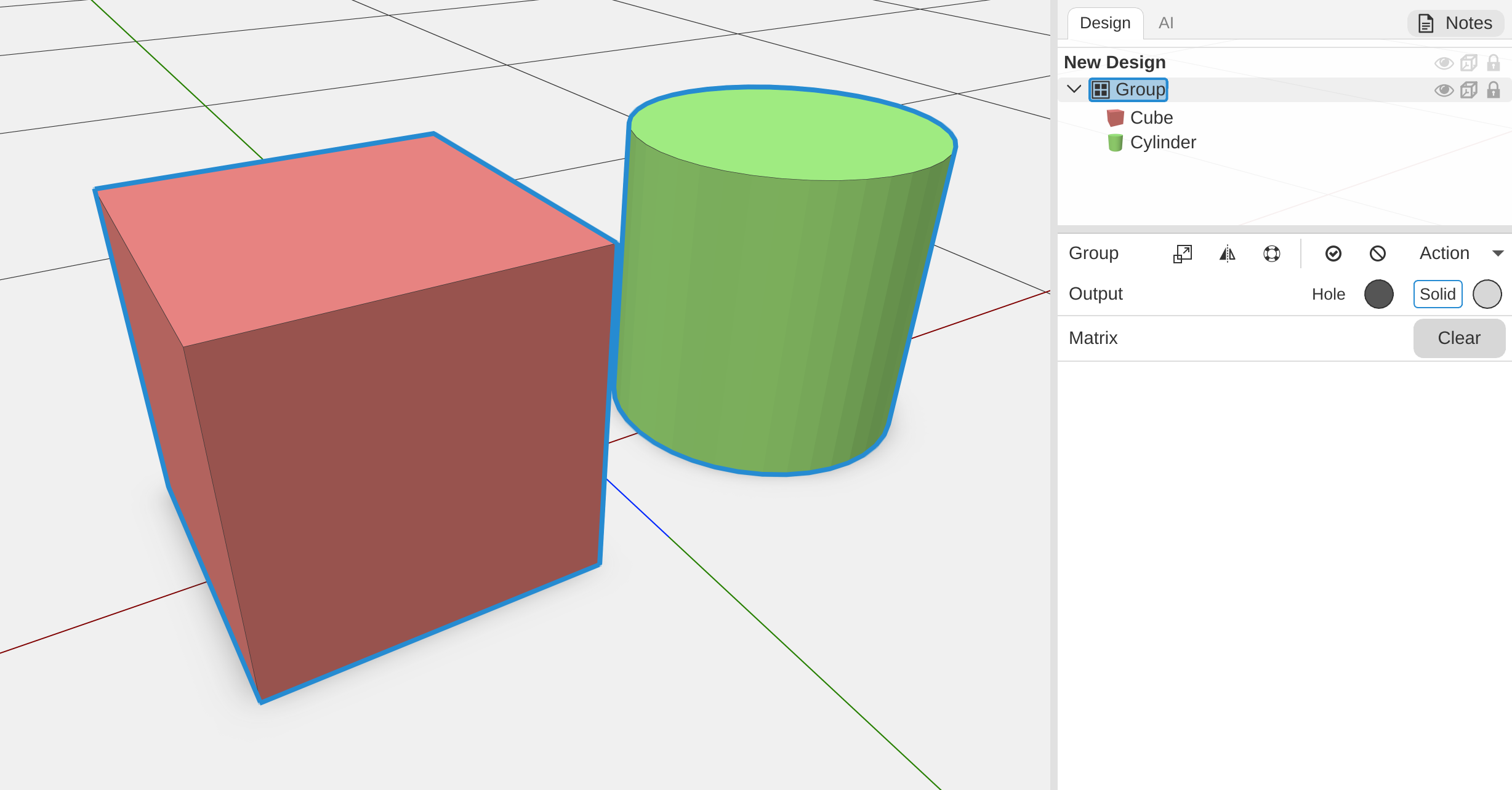
How to Use
Grouping Objects
- Select two or more objects (click one, then Shift-click the others)
- Click the Group button in the toolbar, or press G
- The objects are now grouped -- they move together as one unit
Ungrouping Objects
- Select a group
- Click the Ungroup button in the toolbar, or press Shift + G

- The individual objects are restored as separate items
Ungrouping also attempts to separate multiple bodies within a single imported STL file, if present.
Group vs. Combine
| Feature | Group | Combine |
|---|---|---|
| Objects remain separate | Yes | Kept inside the Combine, but shown as one joined shape |
| Can change the parts later | Yes | Yes: double-click the Combine (Edit Children) and change a part, and the Combine updates |
| Ungroup | Puts the parts back as separate objects | Bakes the Combine into one plain shape; the original parts are gone (Ctrl+Z / ⌘Z takes it back) |
| Merges overlapping geometry | No | Yes |
| Objects can have different colors | Yes | Colors preserved per-face |
| Use case | Organization and movement | Creating single solid shapes |
Tips
- Groups can be nested -- you can group objects that are already in groups
- Select a group and look at the Design Tree to see and select individual objects within it
- Grouping is non-destructive and can always be reversed with Ungroup
Related
- Combine - Merge objects into a single solid instead of grouping
- Selection - How to select multiple objects for grouping
- Components - Create reusable parameterized groups