Cloud Library
The Cloud Library stores your designs online in your MatterHackers account. This lets you access your designs from any computer and keep a backup in the cloud.
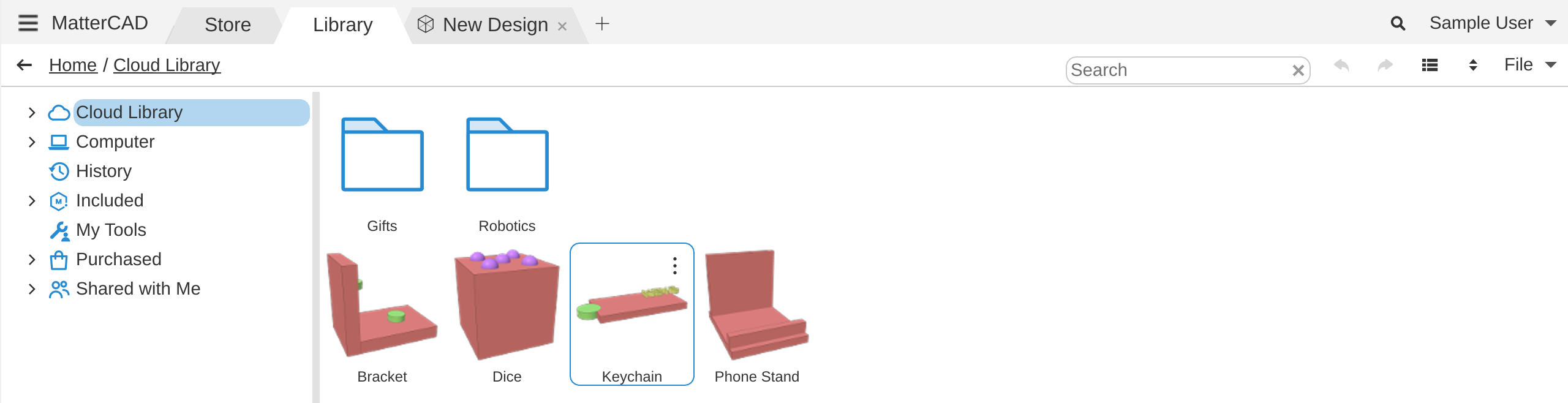
Getting Started
- Sign in to your MatterHackers account: click (sign in) at the far right of the tab bar. See Signing In
- The Cloud Library appears in your library browser
- Upload designs by dragging them into the cloud folder, or save directly to the cloud
Features
- Access anywhere - Your designs are available on any computer where you sign in
- Cloud backup - Your work is safely stored online
- Folder organization - Create folders to organize your cloud designs just like the local library
- Sharing - Share designs with other MatterCAD users. See Sharing
Tips
- Designs are synced automatically when you save to the cloud library
- You need an internet connection to access cloud library content
- Large files may take a moment to upload or download
- Keep important designs in both local and cloud libraries for redundancy
Related
- Local Library - Manage designs stored on your computer
- Sharing - Share designs with others
- Signing In - Sign in, sign out and what signing out closes