Adding Parts on the Web
While you edit a design on the website, you can add shapes, sample parts, your own designs from your online library, and files from your computer.
Shapes from the Favorites Bar
Double-click a shape in the favorites bar down the left side of the editor, or drag it onto the bed. See Creating New Objects. On a phone, the toolbar's Add button opens the same shapes, and you can drag in one after another (Using MatterCAD on a Phone).
Add to Bed
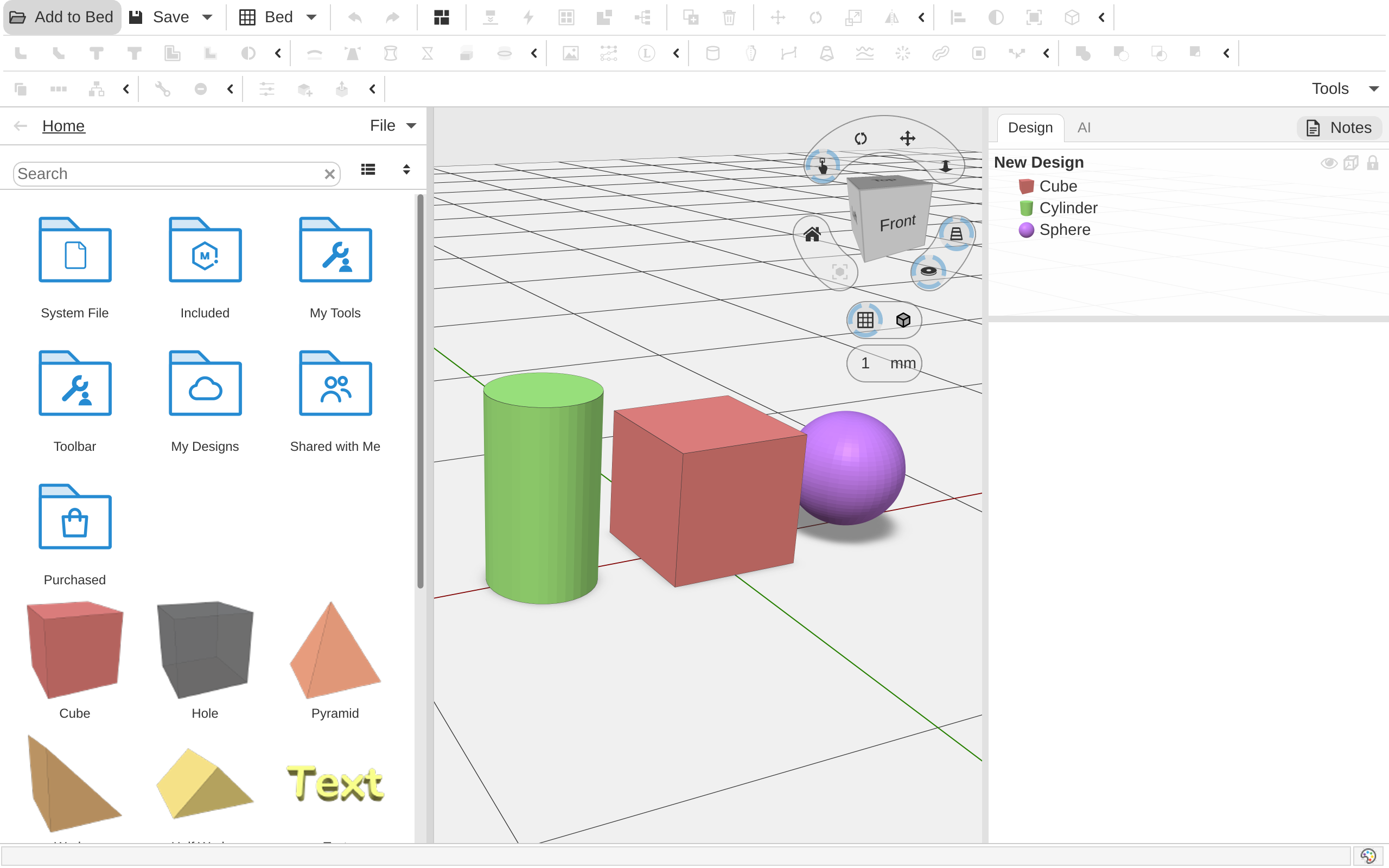
Click Add to Bed in the toolbar. The library opens over the left side of the design. Drag an item onto the bed, or double-click it, to add it to your design. Click outside the library to close it.
On a phone, tap Add, then the last tile, the open folder (Add from Library…). Drag an item onto the bed, or hold a finger on it and choose Add to Bed.
Included
Included holds the parts that come with MatterCAD:
- 3D Primitives and 2D Primitives - Every built-in shape.
- Mechanical - Gears, threads and other mechanical parts (Mechanical Parts).
- Sample Parts - Finished designs to explore or build on. On the website a sample part is downloaded when you add it, so it can take a moment to appear.
- Tools - QR Code, Measure Tool, Description and Variable Sheet.
- Design Apps - Designs you can customize (Design Apps).
Your Online Library
At the end of the library's list are the designs in your online library, the same ones the website's Library page shows:
- My Designs - Your own designs, with their folders.
- Shared with Me - Designs other people have shared with you (Sharing).
- Purchased - Designs you have bought.
Here you can only add these designs to the bed. To rename, move or remove a design, use the website's Library page.
If the website refuses to send a design, MatterCAD shows a message asking you to sign in again. Sign in on the website, then try again.
Files from Your Computer
- System File - Click Add to Bed and open System File, the first folder in the library. Your browser asks you to pick a file, the library closes, and the file's parts are added to the bed. This works on a phone too: tap Add, then the open folder at the end of the grid.
- Drag and drop - Drag a file from your computer onto the 3D view while you edit. It lands where you let go.
MatterCAD reads the same formats as on your computer: MCX, STL, OBJ, 3MF, AMF, STEP, SVG, DXF and pictures. See Adding Existing Objects for what each one brings in.
Related
- MatterCAD on the Web - Preview, Edit and View
- Saving on the Web - Keep your design in your online library
- Library - Organize, store and share your designs