Using MatterCAD on a Phone
On a phone, MatterCAD lays itself out to give the 3D view as much of the small screen as it can, whichever way up you hold it. You get the same layout whenever MatterCAD's area is narrower than 600 pixels or shorter than 480 pixels, for example in a browser window made small, and in MatterCAD on your computer if you make its window that small. Most tablets get the full layout either way up. The layout changes as you turn the phone or resize the window; your design, what you have selected and your undo history stay as they are.
On the Design's Page
On a phone, the title bar's buttons are icons only, apart from ☰ Options (below): the back arrow (to the library), the pencil (Edit), which turns into an eye (View) while you edit, the full screen icon (where your browser can fill the screen), and the download arrow (Download). Press the pencil to edit. The toolbar comes down from the top and the bottom sheet comes up from the bottom.
While you edit, the title bar also shows the ☰ Options button, with its words, right after the eye. It opens the Options menu: New Design, Interface Tour, Help and Settings (The Options Menu). The toolbar has no ☰ of its own on the website.
The Toolbar
The toolbar keeps to one row across the top:
- Add (the cube with a plus) - Opens the shapes, with your library at the end (see Add below).
- Undo and Redo.
- Save - Saves the design (Saving on the Web).
- Tools (the wrench), at the right end - Every operation, by name (see Tools below).
On a very narrow screen, Tools shows only its wrench, and then Save makes room. Save and Save As are in the bed's menu too: hold a finger on an empty spot of the bed (Press and Hold for a Menu).
The rest of the toolbar you know from a wider screen has a home of its own on a phone: the operations are in Tools, and the Bed menu's commands, such as Arrange All Parts and Clear Bed, are in the bed's menu.
Add
The favorites bar isn't shown on a phone. Tap Add instead. A grid of the same shapes opens across the top of the 3D view.
- Tap a shape to add it to your design.
- Or drag a shape out of the grid and drop it on the bed where you want it. The grid stays open, so you can drag in another shape right after it.
- The last tile, the open folder, is Add from Library…. Tap it to open the library: Included with every shape, the sample parts and the tools, and on the website your online library (Adding Parts on the Web). Drag an item onto the bed, or hold a finger on it and choose Add to Bed.
The grid closes when you tap a shape, the library tile or an empty spot in it. Tapping outside it and the toolbar closes it too.
Tools
Tap Tools to open a list over the 3D view with every operation, each with its icon and its name, under the same group headings the toolbar uses. The operations that sit in no group come first, under General, and the tools you saved yourself come last, under My Tools.
- Tap an operation to use it on what you have selected. The list closes.
- An operation that can't be used on what you have selected is faded, with a line under its name saying what it needs you to select.
- Drag the list with your finger to scroll it.
Tap outside the list and the toolbar to close it without picking anything.
The Selection Bar
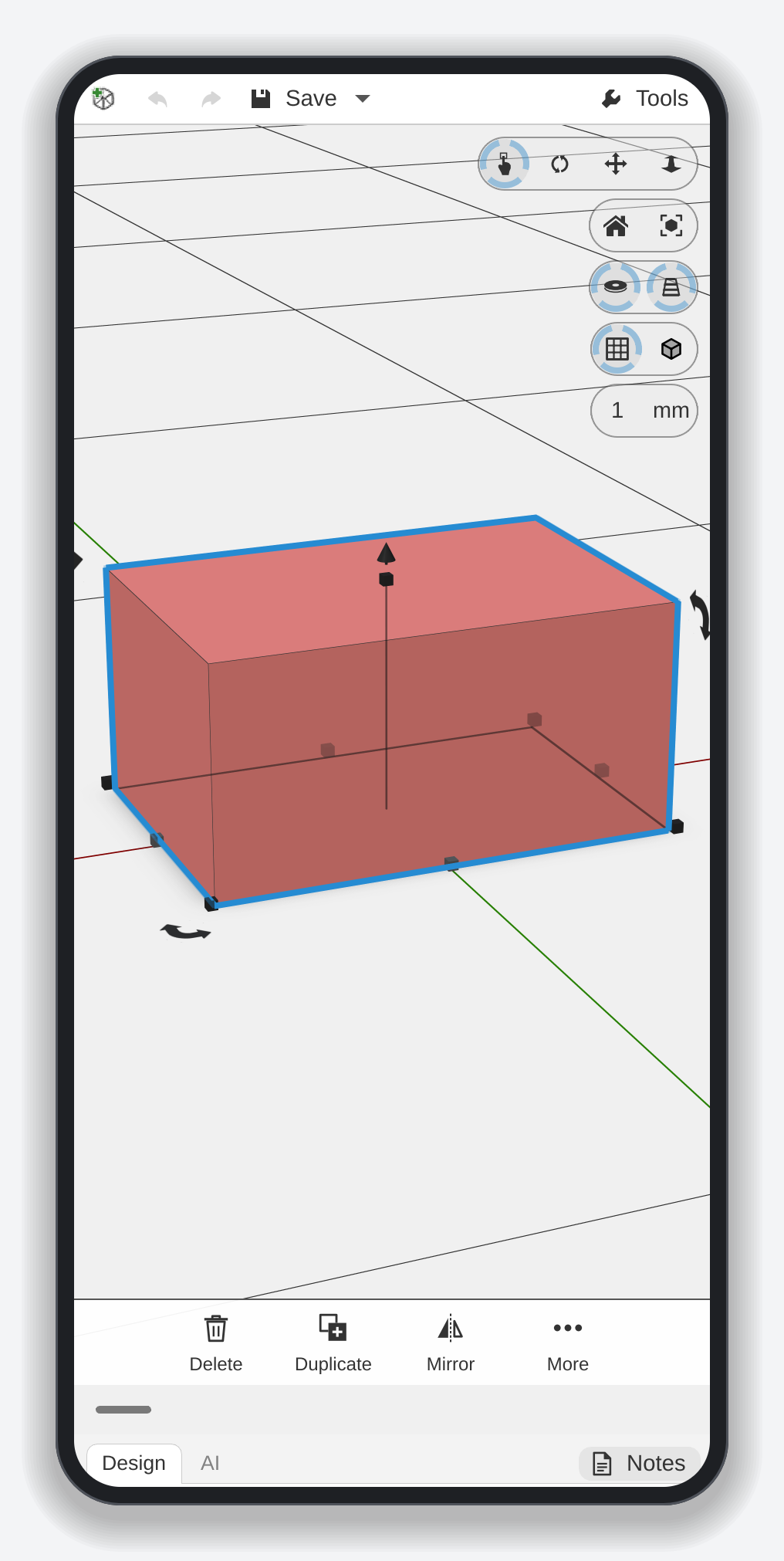
While a part is selected, a bar of buttons runs along the bottom of the 3D view, just above the bottom sheet, within reach of your thumb. Each button is an icon with a word under it:
- Delete - Removes what you selected. It isn't there for a locked part.
- Duplicate - Adds a copy.
- Group - When you selected two or more parts. Ungroup takes its place when you selected a group.
- Mirror.
- Align - When you selected two or more parts.
- Combine and Subtract - When you selected two or more parts, or a group of them.
- More - Opens the part's menu, the same one you get by holding a finger on the part.
Only the buttons that do something for what you selected are shown. If the screen is too narrow for all of them, the last ones are left off; you still find them under More. Undo takes back what a button did in one step. Raising the bottom sheet as high as it goes covers the bar.
Press and Hold for a Menu
A phone has no right click. Instead, hold a finger still on a part for about half a second. A ring fills around your finger, then the part's menu opens, with rows big enough for a finger. It is the menu a right click opens on a computer, with Modify, Cut, Copy, Paste, Save As, Export and Remove (The Right-Click Menu).
- Hold a finger on an empty spot of the bed for the bed's menu: Save, Save As, Export, Cut, Copy, Paste, Arrange All Parts, Show All, Unlock All and Clear Bed (and Reload in MatterCAD on your computer).
- Hold a finger on an item in the library for that item's menu, with Add to Bed.
- A menu too long for the screen scrolls: drag it up or down with your finger.
Tap a row to use it, or tap outside the menu to close it. The first time you tap a part, MatterCAD reminds you once: "Tip: press and hold a part for more options."
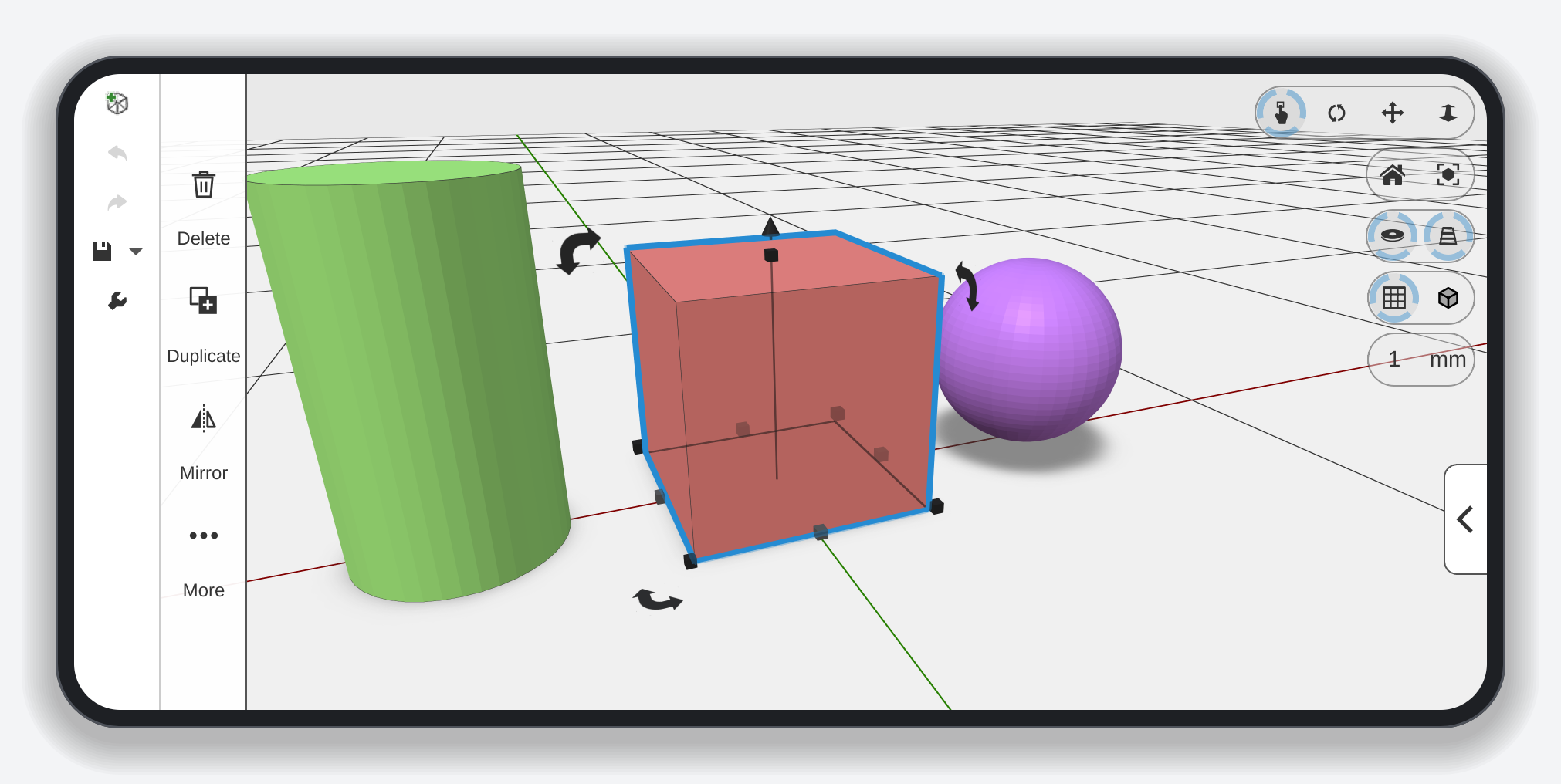
A Phone on Its Side
Turn the phone sideways and the 3D view takes the whole height of the screen:
- The toolbar becomes a rail down the left edge: Add, Undo, Redo, Save and Tools, as icons only. When the rail is too short for all of them, Save makes room.
- The shapes from Add and the list from Tools open beside the rail.
- While a part is selected, the selection bar is a column beside the rail.
- The Design, AI and Notes panel is a drawer at the right edge. Tap the handle on that edge, or drag it in with your finger, to open it. Tap the handle again, or tap anywhere outside the drawer, to close it (with a keyboard, Esc closes it too).
The Bottom Sheet
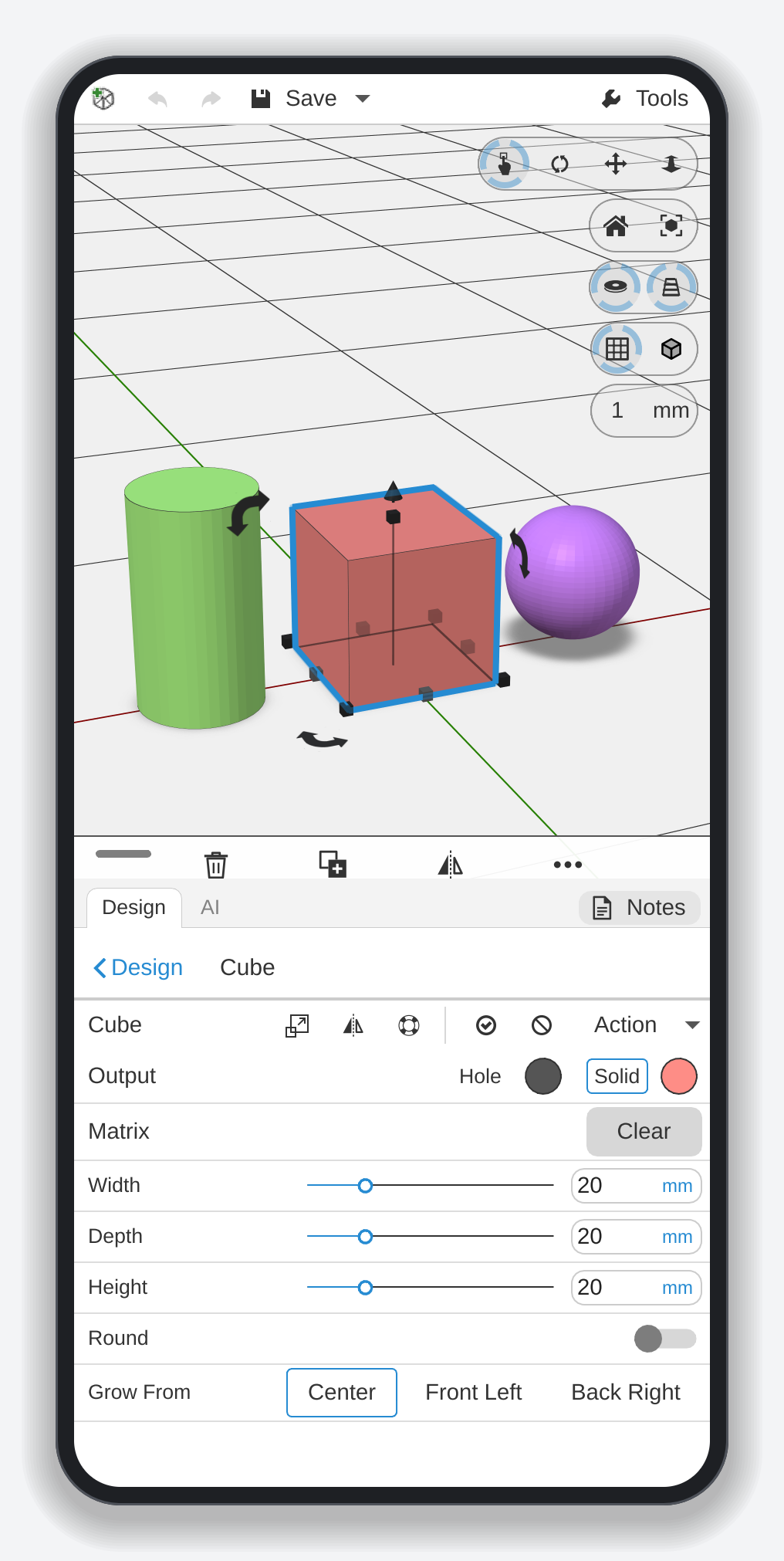
On a phone held upright, the side panel becomes a sheet along the bottom of the screen. Its top row holds the Design and AI tabs and the Notes button (Design Notes).
To move it, drag the small grip at the left end of the sheet's top edge up or down. The sheet stays wherever you let go:
- As low as it goes, only the grip and the tab row show, and the 3D view fills the rest of the screen.
- As high as it goes, the sheet covers the 3D view but for a strip under the toolbar.
- At the start, the sheet takes a bit less than half of the room under the toolbar, and the 3D view keeps the rest.
MatterCAD remembers where you left the sheet.
When you pick a part, the Design tab shows its properties under a row with ‹ Design (back to the tree) and the part's name. With the sheet dragged low, that row may be all that shows: tap the part's name to raise the sheet to where it starts, so the properties have room.
Camera Controls
On a phone there is no cube. The camera buttons sit in a column at the top-right of the 3D view, row by row:
- Select Parts, Rotate View, Move View and Zoom View - What a one-finger drag does.
- Reset View and Zoom to Selection.
- Turntable Mode and Perspective Mode.
- Show Bed and the view style button.
- The snap button and the units button.
They work as described in Viewport Navigation. When MatterCAD frames your design (Reset View, Zoom to Selection), it keeps the design clear of this column.
Touch Gestures
One finger does what the selected mode button says, and two fingers pinch to zoom and move the view in any mode. Hold a finger still on a part or the bed for its menu (Press and Hold for a Menu). See Touch Screen.
Typing
Tap a field, such as a size in the Properties panel or the name in the Save As box, and MatterCAD's own keyboard slides up from the bottom of the screen. MatterCAD makes room above it: the bottom sheet rests on top of the keyboard, the 3D view gets shorter, and the field you are typing in stays in sight.
To put the keyboard away, tap the key with the down arrow on the bottom row of the letters page (the ?123 and other symbol pages don't have it), or tap outside the field, for example in the 3D view. The layout goes back to how it was.
Full Screen
Where your phone's browser can fill the screen, the title bar has a full screen icon (four corners), just before the download arrow. Tap it to fill the screen with the title bar and the design, and tap it again to go back. Where the browser can't fill the screen, as on an iPhone, there is no full screen button at all, neither in the title bar nor in MatterCAD.
Related
- MatterCAD on the Web - Preview, Edit and View
- Viewport Navigation - Turn, move and zoom the view
- Editing Objects - Move, turn and resize parts
- Adding Parts on the Web - Shapes, sample parts and your own designs