Repair
Repair fixes common problems in mesh geometry, including non-manifold edges, holes, inconsistent face orientation, and nearly-coincident vertices. This is especially useful for imported STL and OBJ files that may have errors.
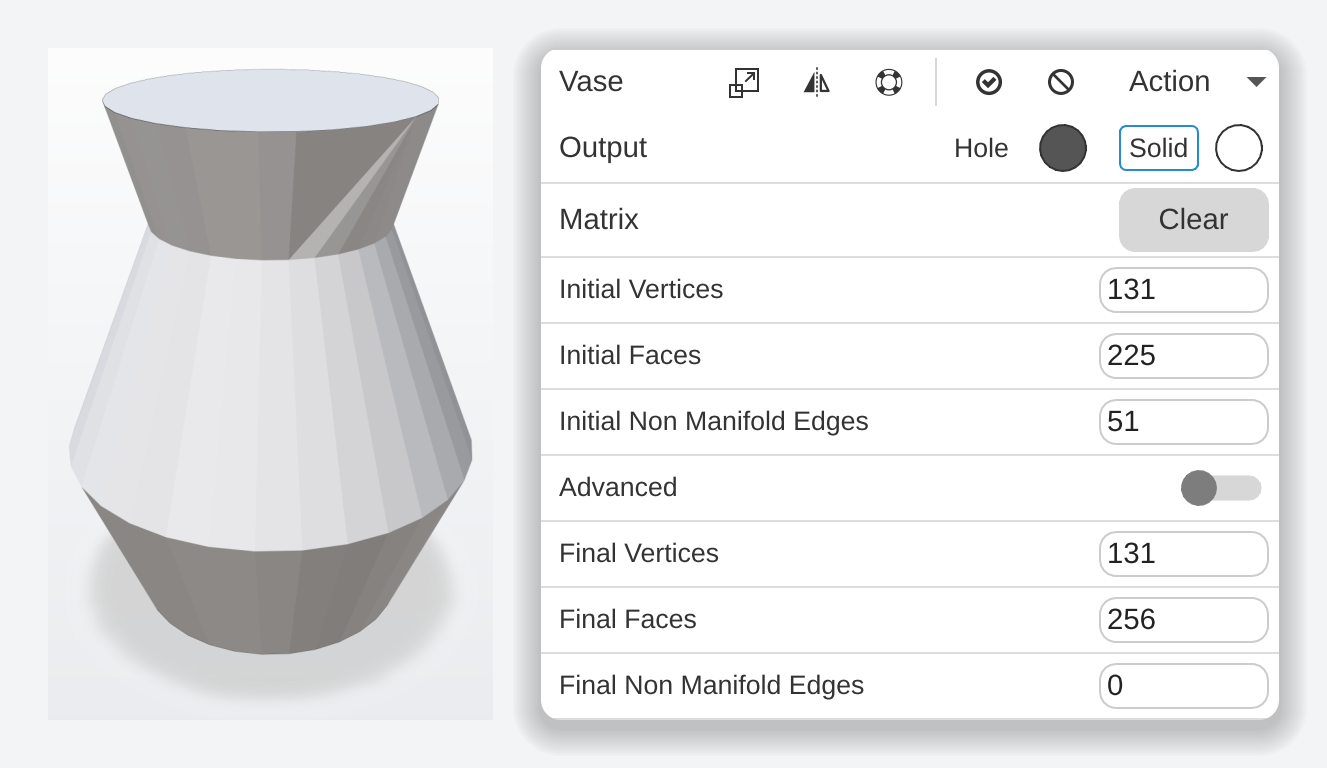
How to Use
- Select an object with mesh problems
- Click Repair in the Mesh group of the toolbar
- Review the before/after statistics to see what was fixed
Statistics (Read Only)
- Initial Vertices / Final Vertices - Vertex count before and after repair
- Initial Faces / Final Faces - Face count before and after repair
- Initial Non-Manifold Edges / Final Non-Manifold Edges - Problem edge count before and after
Advanced Options
Enable Advanced mode for fine-grained control:
- Weld Vertices - Merge nearly-coincident vertices (default: on)
- Weld Tolerance - How close vertices must be to merge
- Face Orientation - Turn inside-out shells the right way round, so every body reads as solid. Each shell is judged on its own, so a hollow model keeps its cavities instead of having them filled in. Shells whose own faces disagree with each other are left alone rather than guessed at, and models that are not watertight fall back to a more tolerant repair - run Fill Holes first if orientation alone does not fix them.
- Weld Edges - Repair small cracks and bad seams
- Fill Holes - Fill gaps in the mesh surface
- Remove Mode - Remove internal or occluded geometry:
- None - Keep all geometry
- Interior - Remove internal bodies hidden inside the main shape
- Occluded - Remove faces blocked from outside view
Tips
- Try Repair first if boolean operations (Combine, Subtract) produce unexpected results on imported models
- The default settings (Weld Vertices on, everything else off) fix the most common issues
- Enable Fill Holes if you can see through gaps in the model
- Use Remove Interior to clean up models that have hidden geometry inside
Related
- Reduce - Lower the polygon count
- Adding Existing Objects - Import models that may need repair