Translate
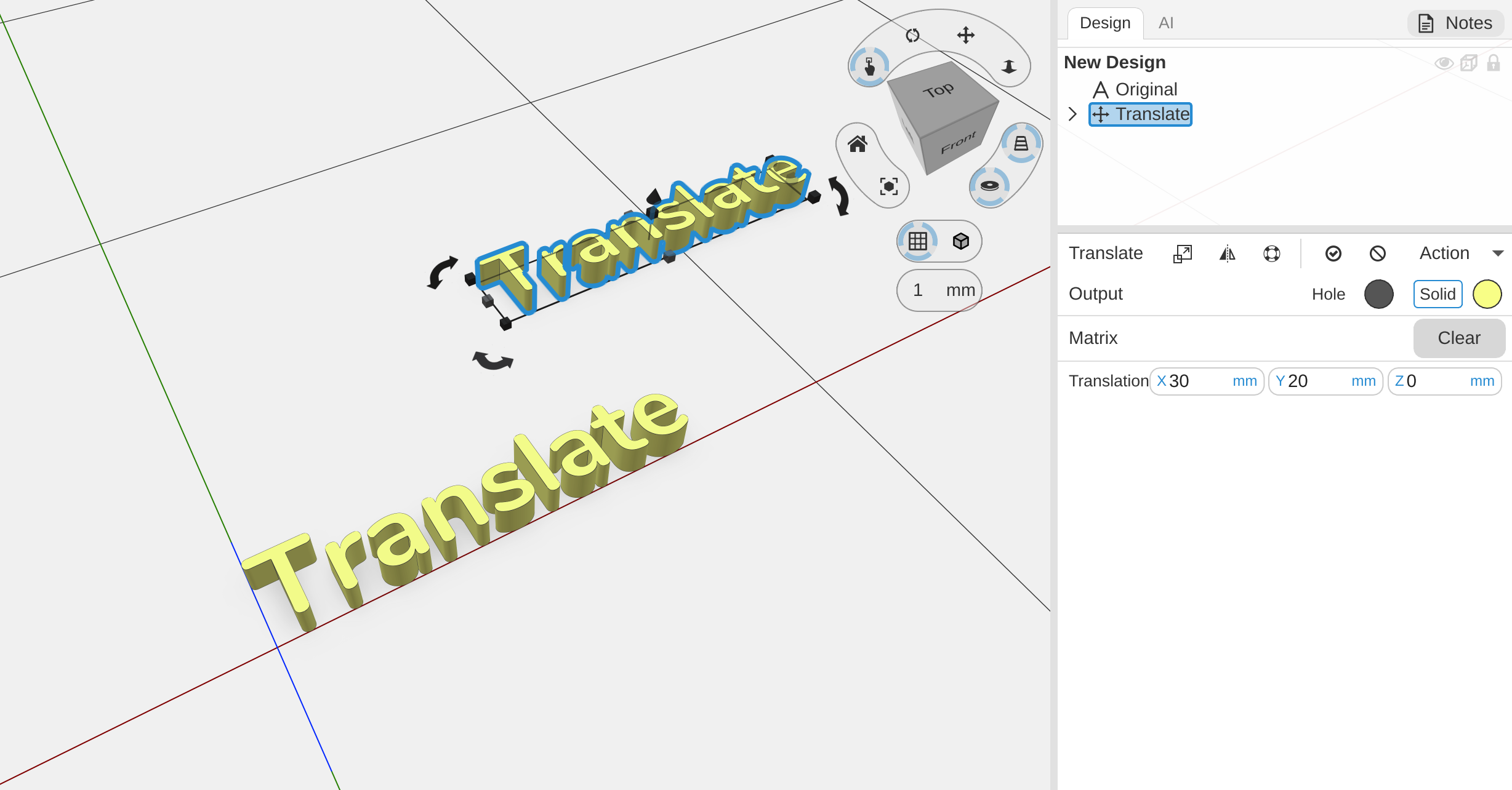
Translate moves an object by a specific distance along the X, Y, and/or Z axes. Unlike dragging an object with the mouse, Translate lets you enter exact offset values.
How to Use
- Select an object
- Click Translate in the Transform group of the toolbar
- Enter the desired offset values for X, Y, and Z in the Properties panel
Parameters
- X, Y, Z (Translation) - The distance to move the object along each axis, in millimeters. Supports expressions for calculated values.
Tips
- Use Translate when you need precise, repeatable positioning that you can adjust later
- The translation values are relative to the object's current position -- entering 10 for X moves it 10mm to the right from where it is
- For quick repositioning, you can also drag objects directly in the viewport. See Editing Objects