Pinch
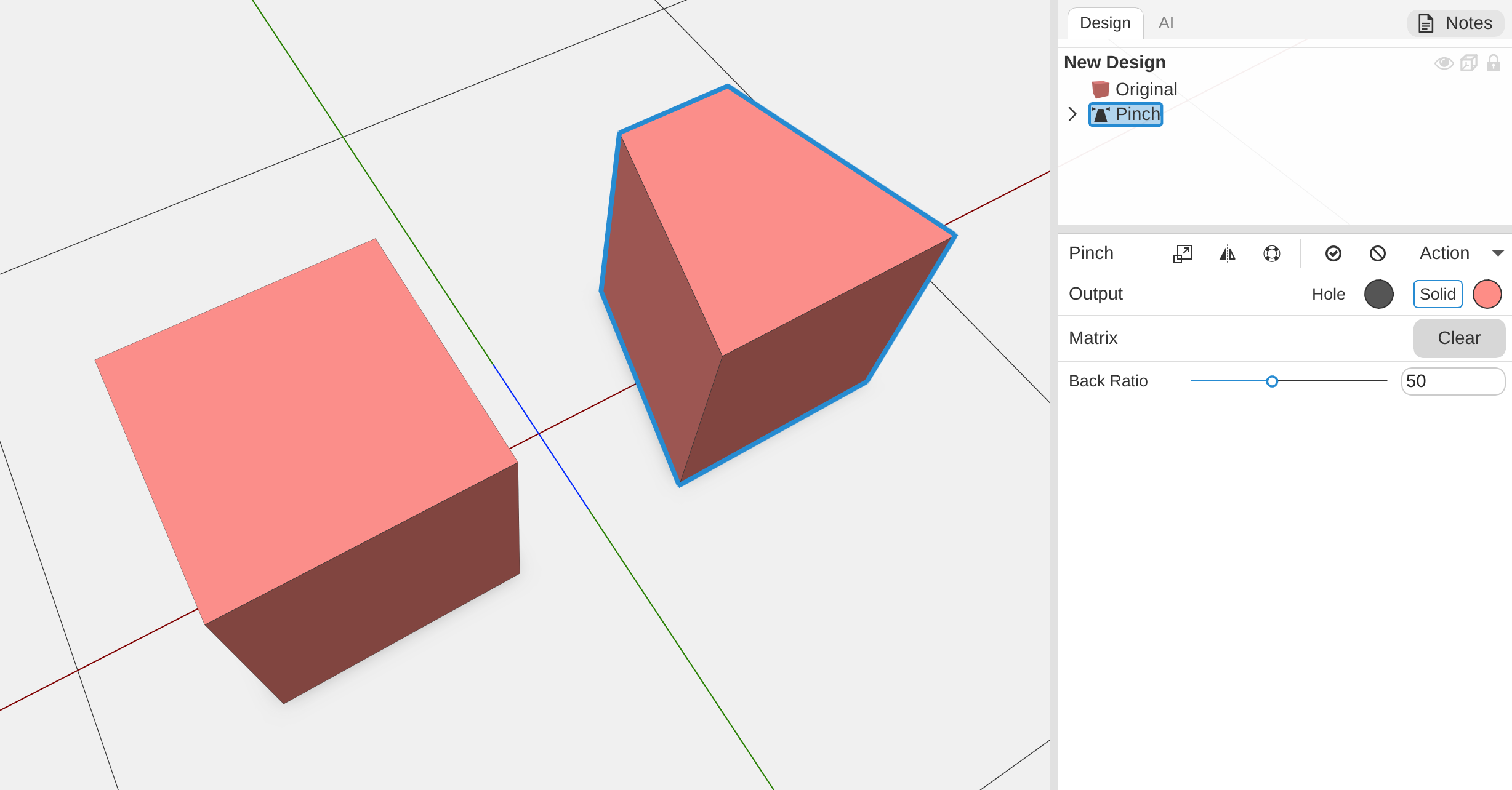
Pinch tapers a part from front to back. The front (the side nearest you in the Front view, lowest Y) keeps its width; moving toward the back (highest Y) the part narrows (or widens) toward its center line along X, reaching the Back Ratio at the back. The height (Z) is not changed.
How to Use
- Select an object
- Click Pinch in the Deform group of the toolbar
- Set Back Ratio in the Properties panel
Parameters
- Back Ratio - The width of the back as a percentage of its original width (default 50; 0 to 300). 100 leaves the part unchanged, below 100 narrows the back (0 squeezes it to a line), above 100 flares it wider
Tips
- To taper along a different direction, rotate the part first, pinch it, then rotate the result back
- Use this to create tapered, narrowing shapes from rectangular or cylindrical objects
- For radial (all-around) compression, use Radial Pinch instead
Related
- Radial Pinch - Pinch radially around a center point
- Twist - Rotate along height
- Curve - Bend into an arc