Align in Place
Align in Place puts two or more selected parts back where their own files placed them relative to each other, so parts that were made to fit together line up again. The first part you selected stays where it is; every other part moves so it sits relative to the first exactly as it did in the files they came from. It also clears each part's rotation and scale.
|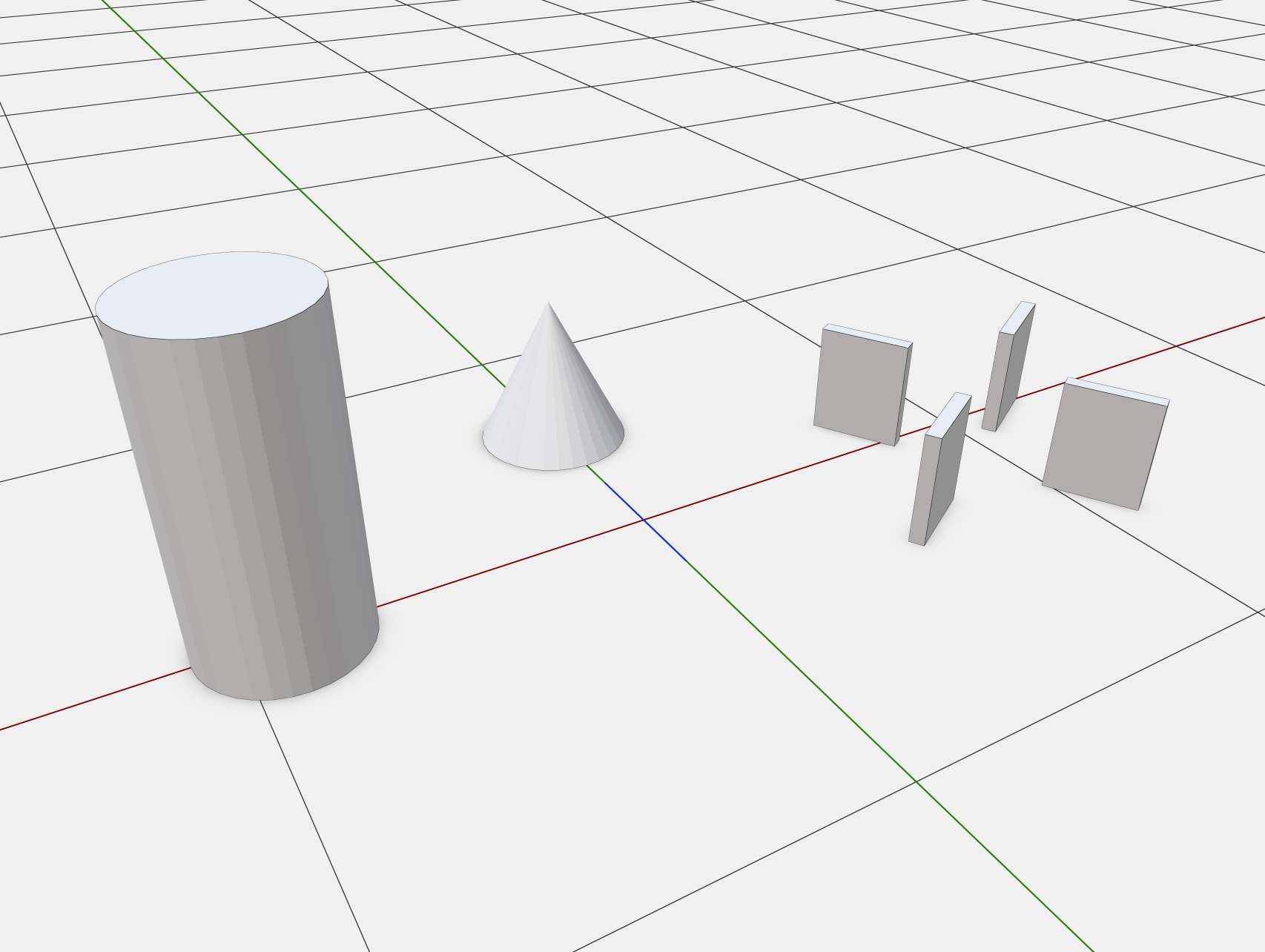 |
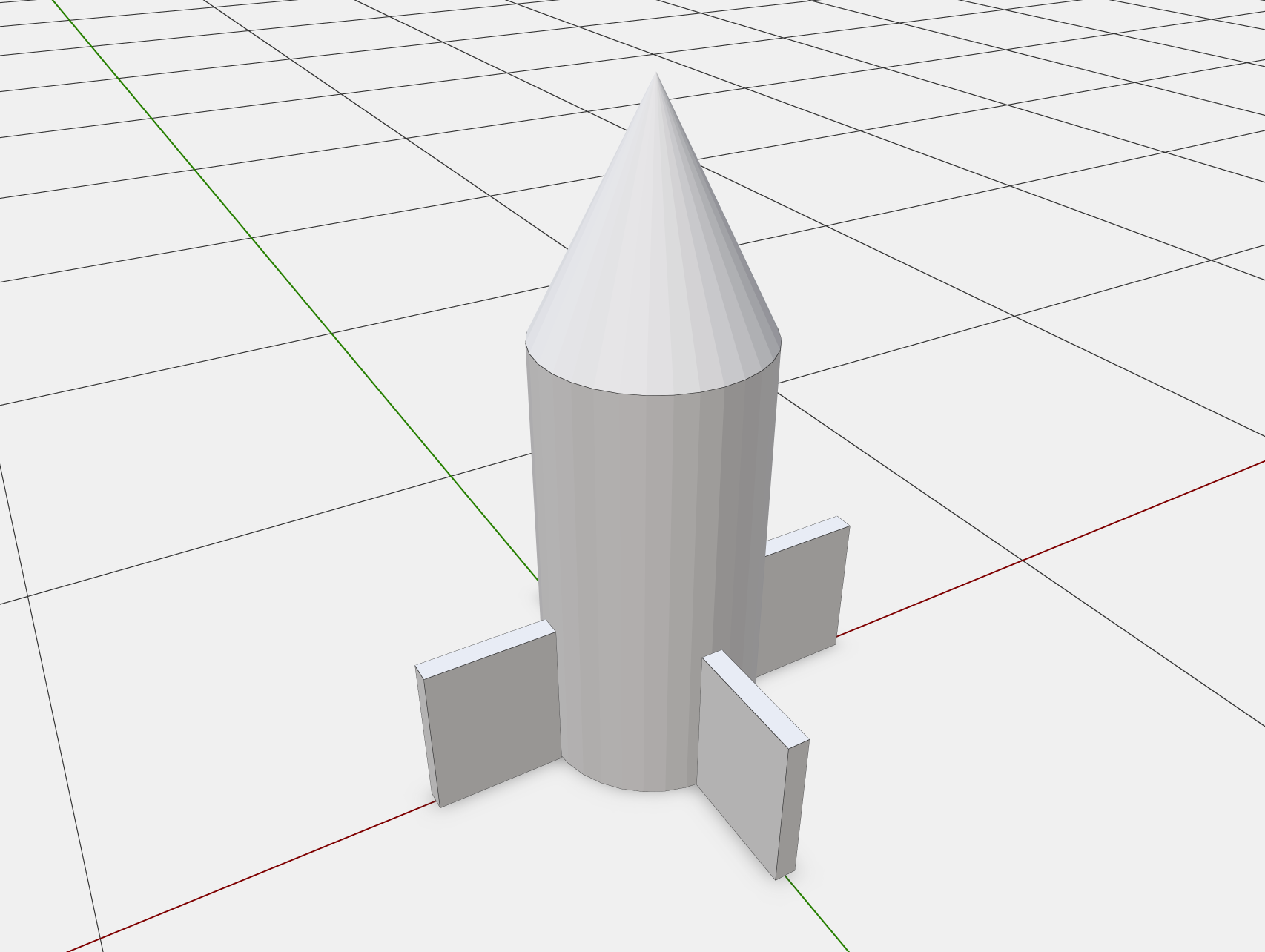 |
How to Use
- Select two or more parts
- Click Align in Place in the Placement group of the toolbar (also in the right-click Modify menu)
When to Use
Use it when the pieces of one model, exported as separate files that share the same coordinates, have been moved apart: for example the pieces of a multi-part figure, or the parts of a model split for different colors. Because it clears rotation and scale, use it before you rotate or scale the parts. It is a single undo step.
Related
- Align - Position objects relative to each other along any axis
- Fit to Bounds - Scale an object to fit within a rectangular boundary