The AI Tab
The AI tab is a chat inside MatterCAD. Tell it what you want in plain words, and it builds, changes or explains the design it belongs to. You watch each change happen in the 3D view, and one Undo takes a change back.
To let AI tools outside MatterCAD, such as Claude Code, work on your designs, see Using AI Assistants instead.
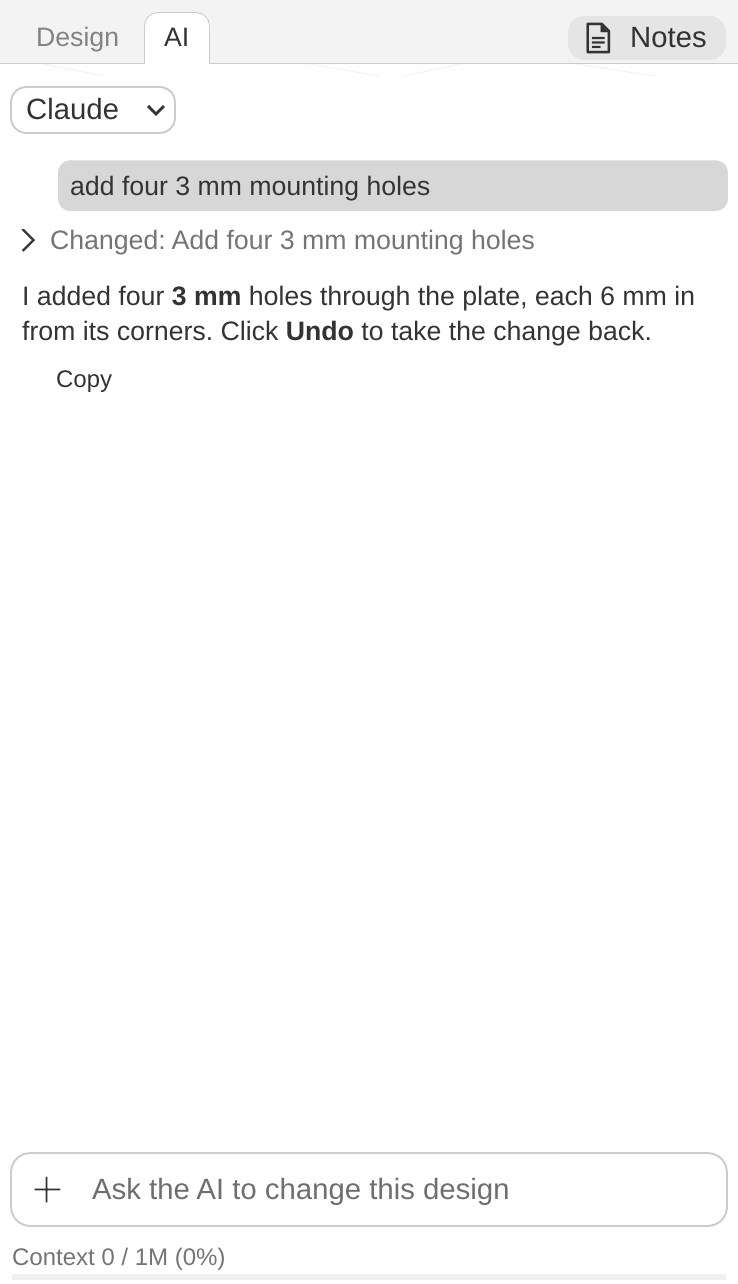
Opening the AI Tab
Click AI at the top of the side panel, next to Design. Click Design to go back to the Design tree and Properties panel.
Each design has its own chat. The AI in a design's tab works only on that design, even when another design's tab is in front. While the AI is working and you are on the Design tab, a small dot on the AI tab shows it is still busy.
On the desktop, the chat uses your own API key or the MatterHackers AI service, as set under AI connection in Settings. If it can't connect, the tab says what to do. If you are signed out and the chat would use MatterHackers AI (MatterHackers AI is chosen, or Automatic is chosen and you haven't entered an Anthropic or OpenAI key), it says "Sign in to your MatterHackers account to use MatterHackers AI." with a Sign In button. On My own API keys with no key, it says, for example, "Add your Anthropic API key in Settings to use AI." with an Open Settings button. On the website, the site decides whether you can chat.
MatterHackers AI needs a plan. Without one, the tab shows the plans and a Get button on each. See AI Plans for what each plan includes, and Buying an AI Plan to get one.
Your first message sends at once, like every one after it. What you send, with any pictures or files you attach and the parts of your design the AI reads, goes to the AI service you use: with your own API keys, to the provider you chose (Anthropic or OpenAI); on MatterHackers AI, to MatterHackers AI. You agree to this when you sign up for that service, so MatterCAD doesn't stop to ask before you send.
What to Ask
Type in the box that says "Ask the AI to change this design" and press Enter, or click Send. For example:
- Build: "Make a 60 x 40 x 20 mm box with 2 mm walls and a lid that fits on top"
- Change: "Make the lid 2 mm thicker" or "Add four 3 mm holes in the corners"
- Explain: "What does the Subtract in this design do?" or "How tall is this part?"
The AI reads the design, looks at it, measures it and can search these help pages, so it can check its own work. While it works, the line under the chat says what it is doing, such as "Changing the design…" or "Measuring…".
Each change shows as a row such as "Changed: add a box". Click a row to see the details. Each change is one undo step in the design's undo history, named starting with "AI:". Each answer has a Copy button that copies its text.
Click Stop to stop a reply. If the AI needs a choice from you, it asks with buttons: pick one, or type your own reply below. After many steps, or a lot of tokens, it pauses to check in. Click Continue to let it keep working.
The drop-down at the top left chooses the model, Claude or GPT. It can't be changed while a reply is running, and it isn't shown on the MatterHackers AI service.
Attaching Pictures and Files
You can add pictures and PDFs to a message, for example a photo of a part you want to copy, a sketch, or a data sheet:
- Click the picture button ("Attach a picture") to choose pictures, or the paperclip ("Attach images or PDFs") to choose pictures or PDFs
- Paste a picture into the message box with Ctrl+V
- Drag files onto the AI tab
The chat takes pictures (.png, .jpg, .jpeg, .webp and .gif) and PDFs. If you drag in several files and some of them can be attached, the others are skipped and the chat says which. If none of the files you drag in can be attached, the AI tab leaves them alone and MatterCAD opens them as it would anywhere else, so an STL dropped there is added to your design. Pictures are made smaller to fit, at most 1568 pixels on their long side. A PDF can be up to 22 MB and 100 pages, and can't be password protected.
Each file waits above the message box until you send. Click × on one to take it off. The AI can also place an attached picture in your design, to trace or build over.
Voice Input
Click the microphone button ("Speak your message") and talk. While it records, a red stop button shows the time and how loud you are. Then:
- Click the stop button, or press Enter, to turn your words into text in the message box. Check the text, then press Enter again to send it
- Click Send while recording to stop and send in one step
- Press Escape to throw the recording away
A recording stops on its own after 5 minutes. With your own API keys, voice needs an OpenAI API key ("Add your OpenAI API key in Settings to use voice."). On the MatterHackers AI service, voice uses the service's own speech-to-text when the service offers it. The microphone button is hidden where MatterCAD can't record.
The Context Meter
The line at the bottom of the tab shows how full the chat is, for example "Context 38k / 1M (4%)", over a thin bar. The AI reads the whole chat again each time it answers, so a fuller chat uses more tokens with every reply. To start over, use Clear chat.
Click the meter for details: this message's token counts and model calls, and the whole conversation's total. It shows no prices.
On the MatterHackers AI service, the meter shows your AI allowance instead: your plan's name, a bar and how much of the week you have used, for example "Plus" and "30% of this week". Click it to see when more room comes back and, if you pay for your plan, a Manage plan link. See The Weekly AI Allowance.
Clear Chat
Clear chat, at the top right of the tab, deletes this design's chat. It asks first ("Clear this design's AI chat? This can't be undone."). Click Clear chat to delete it, or No to keep it. Your design's parts are not changed.
Work From Outside AI Tools
When an AI tool outside MatterCAD, such as Claude Code, works on the design (see Using AI Assistants), its work shows in the chat as one group under the name the tool gives itself, closed to a one-line summary such as "Claude Code (outside assistant): 3 tool calls, changed add mounting holes". Click the group to open it and see each call, then click a call to see what it asked for and the answer it got.
The next message you send gives the AI a short summary of that work, with the design's notes, so it can carry on where the outside tool stopped. Clear chat deletes this record too.
The Chat Is Saved With the Design
The chat is saved in the design's .mcx file. Open the design again later, click AI, and the chat is there, so you or the AI can pick up where you left off. Anyone you share the file with can read the chat too, so clear it first if you'd rather they didn't.
Changing the chat marks the design as having unsaved changes, but the chat is not part of Undo.
If a design's saved chat came from a newer MatterCAD or was damaged, the tab says "This design's saved AI chat can't be opened in this version of MatterCAD. Clear chat to start a new one."
Related
- Using AI Assistants - Let Claude Code, Codex or Claude Desktop work on your designs from outside MatterCAD
- AI Plans - What each MatterHackers AI plan includes, and the weekly allowance
- Buying an AI Plan - Get a plan from the AI tab or mattercad.com
- Managing Your AI Plan - Change your plan or card, cancel, or resume
- Settings - Your API keys and the AI connection
- Design Notes - Notes saved with the design